Tutorial 9 of 10
Filter by screenshot, link and notes, find duplicates and share trimmed copies
Intermediate 6 min
Narrow a board to references with or without screenshots, links or notes, find byte-identical screenshots and duplicate source links, and export copies without private details.
A board grows fast. After a few weeks you have references without a screenshot, the same page saved twice under different titles, and notes you would rather not send to a client. Pageboard has three tools for that clean-up: more filters in the References view, two duplicate checks in Organize, and omission options in Export…. None of them changes a reference unless you edit it yourself.
Filter by what a reference contains
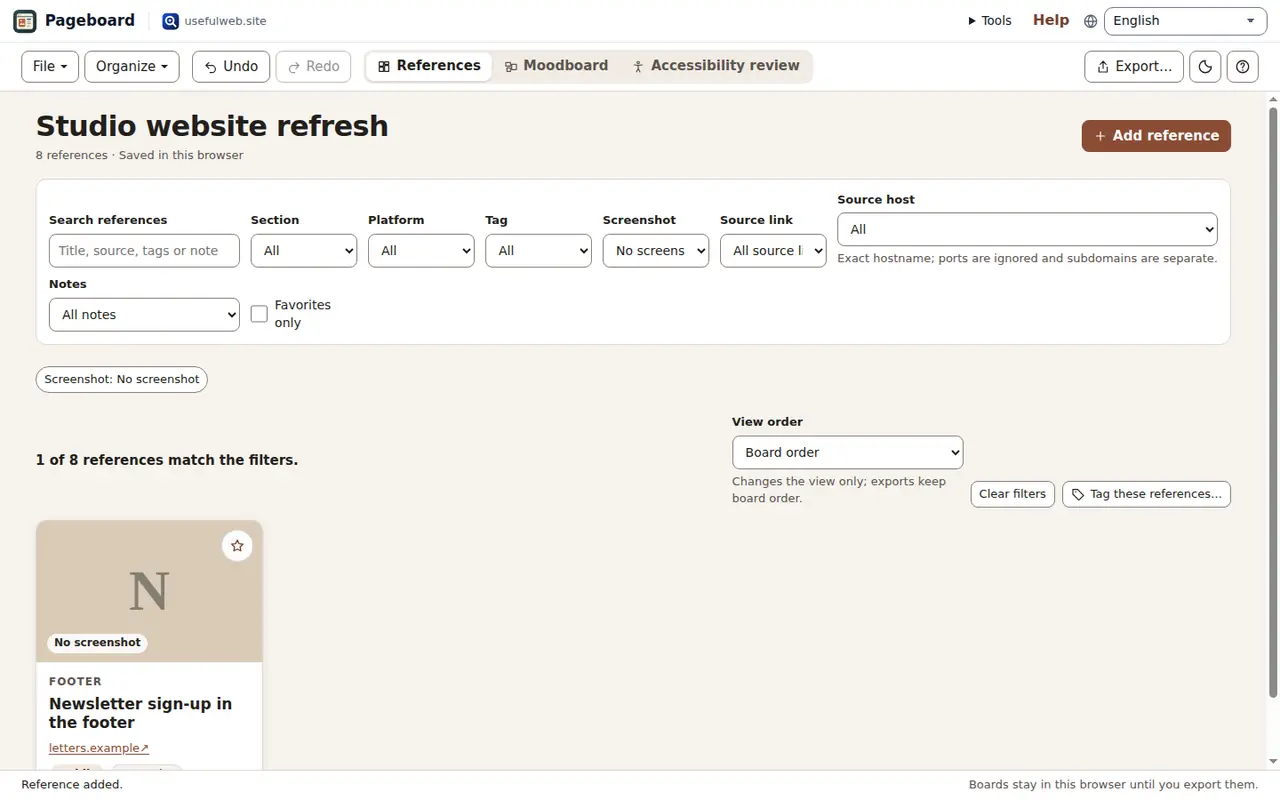
Open the References view. Next to Search references, Section, Platform and Tag you find four more filters:
- Screenshot: All screenshots, Has screenshot or No screenshot. Use No screenshot to find the references you still need to capture.
- Source link: All source links, Has source link or No source link.
- Source host: lists every host that appears in your source links. The hint says how it matches: Exact hostname; ports are ignored and subdomains are separate. So
shop.example.comandexample.comare two entries. - Notes: All notes, Has notes or No notes.
Filters combine with each other and with Favorites only. While any filter is active, a row of active filters appears above the cards, and Organize → Clear filters resets everything at once. Filters only change what you see; the board and its order stay as they are.
Find screenshots used more than once
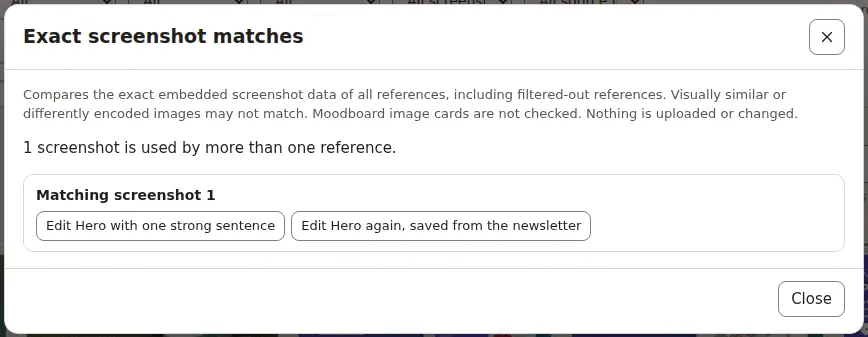
Choose Organize → Find exact screenshot matches…. The dialog Exact screenshot matches compares the embedded screenshot data of all references, including references that the current filters hide. It says how many screenshots are used by more than one reference and shows one group per screenshot (Matching screenshot 1, Matching screenshot 2 …) with an Edit button for every reference in the group. If nothing repeats, it says No exact screenshot matches found.
Read the explanation in the dialog before you delete anything: the check is exact. Two captures of the same page taken a second apart, or the same picture saved as PNG and as JPEG, are different data and do not match. Moodboard image cards are not checked. Nothing is changed; you decide which reference to edit or remove.
Find duplicate source links
Organize → Find duplicate source links… opens Duplicate source links. It compares the links of the whole board, again including filtered-out references. Upper and lower case in the scheme and host, default ports (:443 for https) and dot segments such as /a/../b are ignored. Path, query and fragment must match, so ?ref=newsletter makes a link different. No page is loaded; the check works on the text of the links.
Share a copy without screenshots, notes or links
Open File → Export…. The section Options for JSON and HTML copies has three check boxes:
- Omit reference screenshots and moodboard image cards
- Omit reference notes and moodboard text and note cards
- Clear source link fields
They apply to every JSON and HTML download in the dialog: Editable JSON and Standalone HTML for the whole board, and Selection as JSON and Selection as HTML for the filtered selection. If no filter is active, the dialog tells you that the selection is the whole board, so filter first when you want to share only part of it.
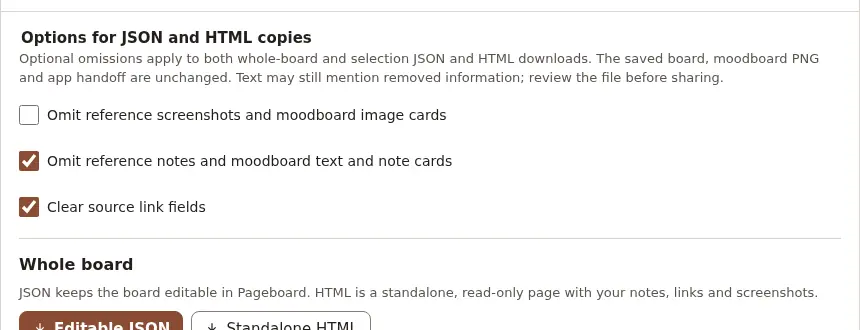
The saved board itself is never changed, and the Moodboard PNG and the hand-over to another app are not affected by these options. Titles and tags stay in the copy, and a title can still mention what you removed, so open the downloaded file and read it once before you send it.
A typical clean-up
- Set Screenshot to No screenshot and add the missing captures.
- Run Find duplicate source links… and merge or delete the doubles.
- Run Find exact screenshot matches… to spot one image pasted into several references.
- Filter by Tag or Section, tick Omit reference notes and moodboard text and note cards, and download Selection as HTML for your client.
Ready to try it?